



A hotel lobby tablet gets accidentally dragged into Android settings by a guest. A warehouse worker pauses a shipment scan to open social media, and the device is never returned to its scanning workflow. A customer service tablet becomes cluttered with personal photos and unauthorized apps, violating corporate compliance policies.
None of these are just “app problems.” They are device-purpose problems.
General-purpose Android devices are designed to be open and flexible. However, businesses need them to be predictable, secure, and stable. The solution is Kiosk Mode.
If you are an IT manager, operations lead, or compliance officer deploying Android handhelds, tablets, or wall-mounted terminals, Kiosk Mode is your most critical tool. It ensures devices stay in their restricted state, maintaining long-term operational stability and strict security.
This guide explores what Kiosk truly means in Mobile Device Management (MDM), the value it delivers, and exactly how Shadowalk’s Lock Down feature transforms a standard device into a dedicated, powerful business terminal.
What does Kiosk mode actually mean in MDM?
In the MDM industry, Kiosk Mode is a software strategy, not a hardware form factor. It is the policy that converts a generic consumer device into a dedicated business tool. Users can only access specific applications, websites, or functions, while all system-level distractions (settings, app stores, notification bars) are strictly blocked.
Different platforms refer to this differently, but the goal is always the same: absolute focus and control.
| Platform | Common Kiosk Terminology |
|---|---|
| Android Enterprise | Kiosk Mode / COSU (Company-Owned, Single-Use) |
| iOS / iPadOS | Single App Mode / Guided Access |
| Windows | Assigned Access / Kiosk Mode |
When evaluating MDM solutions like Shadowalk, Hexnode, or SOTI, the key differentiator is not just if they support Kiosk, but how much control you have over the device's look, feel, and underlying restrictions.
How Shadowalk supports Kiosk mode through Lockdown
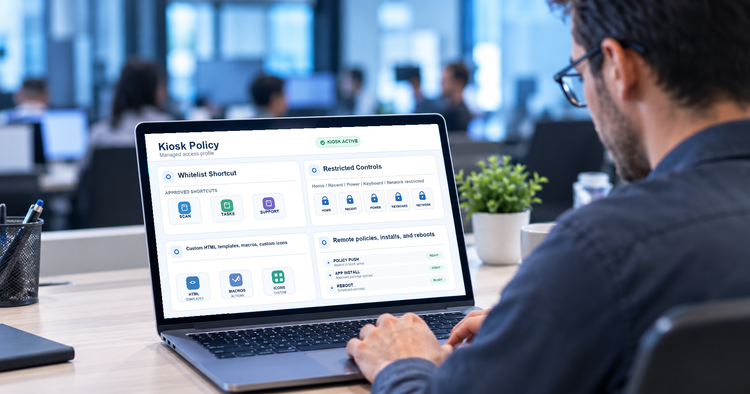
Shadowalk’s Lockdown feature helps businesses create a device experience suited to their operations. Organizations can bring approved applications and websites together, establish a consistent home screen, and define the access users need to complete their tasks.
For employees, this means a clearer path to everyday work tools. For customers, it means a focused interface that is easier to navigate. For IT teams, it provides a more consistent device environment to manage and support.
1. Home Screen: Put Essential Work Tools Within Reach
The home screen is where most device interactions begin. When it is organized around the work being done, users can find the right application or resource with less searching.
Shadowalk lets businesses bring relevant applications and web resources together on a dedicated home screen. A store associate might need product information and inventory tools, while a field technician might need a service application and an online reference portal.
- Direct Access to Everyday Tools: Make frequently used applications and websites easy to find.
- A Clear Starting Point: Help users understand where to begin and how to move between the tools required for their work.
- Recognizable Visual Shortcuts: Use clear names and images to help employees or customers identify the right destination.
The result is a more straightforward experience, particularly for new employees, shared-device users, and customers interacting with a device for the first time.
2. Templates: Create a Clear and Consistent Visual Experience
A well-designed layout helps users understand what is available and where to go next. Across a fleet of devices, a consistent visual structure also makes the experience more familiar.
Shadowalk provides ready-made layouts and custom template options, giving businesses a starting point they can adapt to their presentation needs.
- A Practical Starting Point: Use an existing layout to establish a clear home screen without designing every element from scratch.
- Consistent Branding: Reflect the organization’s visual identity across employee and customer-facing devices.
- Layouts Suited to the Display: Choose a presentation appropriate for different screen orientations and device formats.
These choices help businesses present their tools clearly across locations, while creating a familiar experience for the people who use them.
3. Custom Templates: Build an interface around the Job
Employees should be able to pick up a device and quickly find the tools they need. A warehouse operator, a store associate, and a field technician may use similar Android hardware, but their daily tasks require different interfaces.
Shadowalk’s custom templates help businesses organize the device home screen around those tasks, with a consistent layout and visual identity.
- Clearer access to work tools: Bring relevant applications and resources together so employees spend less time searching for the right tool.
- A consistent user experience: Give teams a familiar interface across devices, helping simplify onboarding and shared-device use.
- An interface suited to each role: Adapt the home screen to different operational needs, from staff devices to customer-facing terminals.
For enterprise users, the benefit is a device that feels ready for the job from the moment they begin using it.
4. Device Control: Keep devices ready for daily operations
A business device needs to remain useful throughout the working day, including when it changes hands between employees or is used by customers.
Shadowalk’s device controls help administrators define the access appropriate for each deployment. Teams can provide the applications and functions users need while limiting access to areas that could interrupt work or lead to unwanted changes.
- Fewer Accidental Changes: Help reduce disruptions caused by users changing device settings or leaving the intended workflow.
- Access That Fits the Role: Give employees and customers an experience suited to their responsibilities and tasks.
- More Consistent Device Behavior: Establish a predictable working environment that is easier for staff to use and IT teams to support.
The practical value is fewer avoidable interruptions and less time spent helping users return a device to its intended state.

Shadowalk's Kiosk Mode in practice: Enterprise use cases
Retail and Hospitality: Keep Customer and Staff Workflows Simple
A restaurant ordering tablet should make it easy for customers to browse and place an order. A store associate’s device may need several tools, such as product lookup and inventory access.
Shadowalk's Kiosk mode helps businesses shape each device around its purpose. Customers receive a focused experience, while employees can reach approved work tools through a familiar interface. This can reduce confusion and the need for staff assistance.
Warehousing and Logistics: Make Shared Devices Easier to Use
Warehouse devices often move between workers and shifts. A consistent interface helps employees find the applications they need for tasks such as inventory checks, picking, and dispatch.
By keeping relevant tools accessible and limiting unnecessary changes, Shadowaalk kiosk mode can help reduce time spent navigating devices or resolving setup issues. This is particularly useful in busy environments where a small interruption can delay the next task.
Healthcare: Support Focused Registration and Staff Workflows
A patient registration tablet needs a clear, straightforward interface. A staff device may require access to a selected set of applications for a different workflow.
Shadowalk kiosk mode helps organizations tailor these experiences and limit access to unrelated device functions. Used alongside appropriate application security and data protection measures, it can support a more controlled and manageable device environment.
Frequently Asked Questions About Shadowalk Kiosk Mode
1. Can Shadowalk support both single-app and multi-app workflows?
Shadowalk provides a single-app mode option, alongside home screen customization for presenting selected applications and web resources. A single-app experience can suit an ordering tablet or registration terminal, while a home screen with several work tools can support employees who move between different tasks.
2. Can we customize the Kiosk home screen to match our business?
Yes. Shadowalk offers home screen customization, image options, and ready-made or custom templates. These features help businesses create a recognizable interface and organize access to relevant tools for employees or customers.
3. Can a website be part of the Kiosk experience?
Yes. Shadowalk’s home screen configuration includes a webpage entry option. This can provide convenient access to resources such as an employee portal, online reference material, or a web-based business application. Website access and application behavior should be checked as part of deployment testing.
4. How can Kiosk mode help reduce IT support work?
A consistent interface can make devices easier to use, while access controls can help reduce accidental changes and interruptions to the intended workflow. This can mean fewer requests to restore settings or help users find the right application, especially when devices are shared across employees or shifts.
Ready to transform your general-purpose devices into secure, dedicated business assets?
Book a demo with Shadowalk today to see the Kiosk feature in action.


